Categories
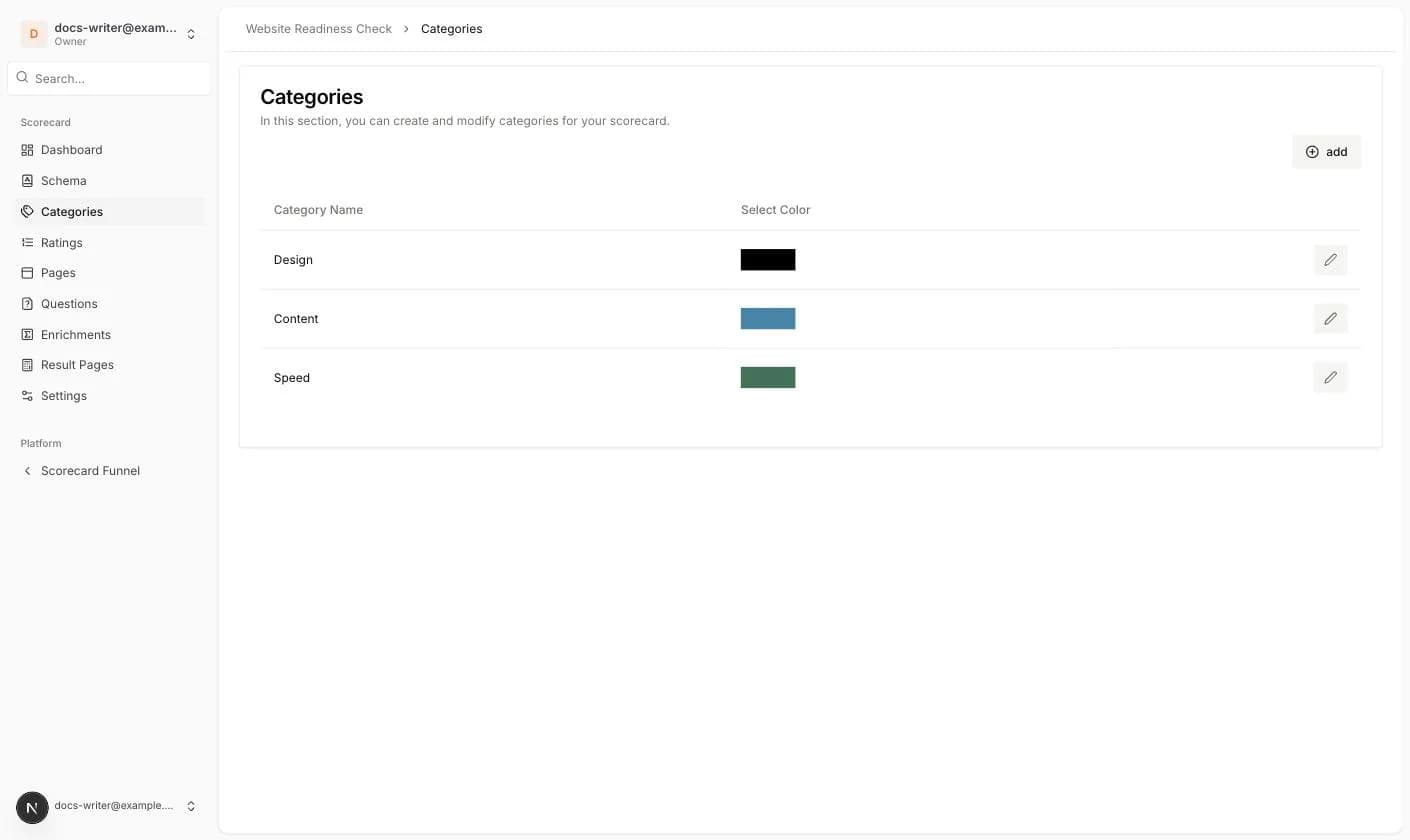
A category groups questions by topic, for example Design, Content and Speed. Pivix calculates a separate score for each category. The category scores appear on the lead page and can be shown on the result page with sections such as Score Category Number or Score Category Donut.
Use categories when you want to tell a lead which area they are strong or weak in. If you only need one total score, you can skip categories, but the checklist counts them as a task.
- 1Open Categories and click add.
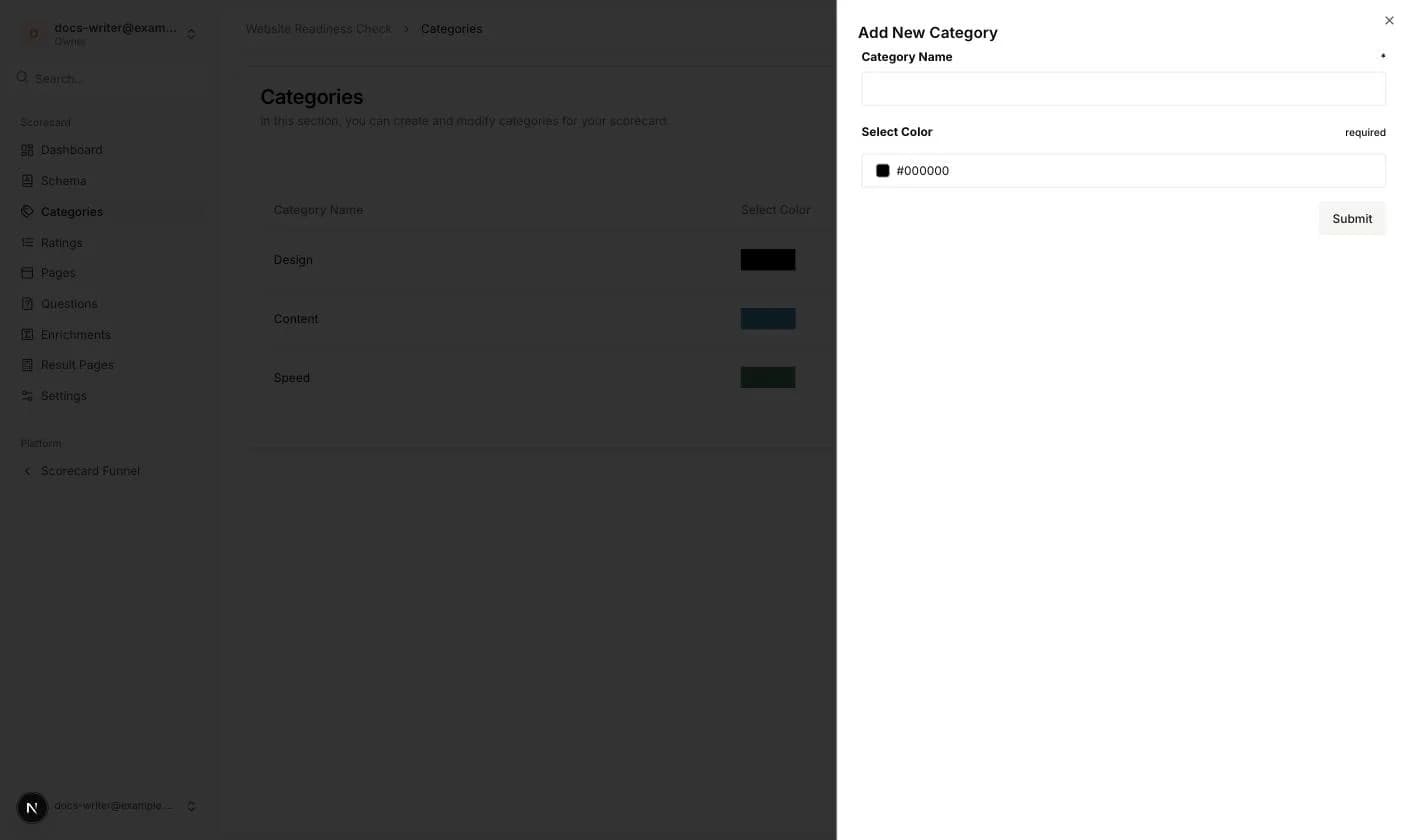
- 2Enter a Category Name. This field is required.
- 3Pick a color with Select Color. This field is also required. The color is used in charts on the result page.
- 4Click Submit. Use the pencil icon in the list to edit a category later.
Tiers (Ratings)
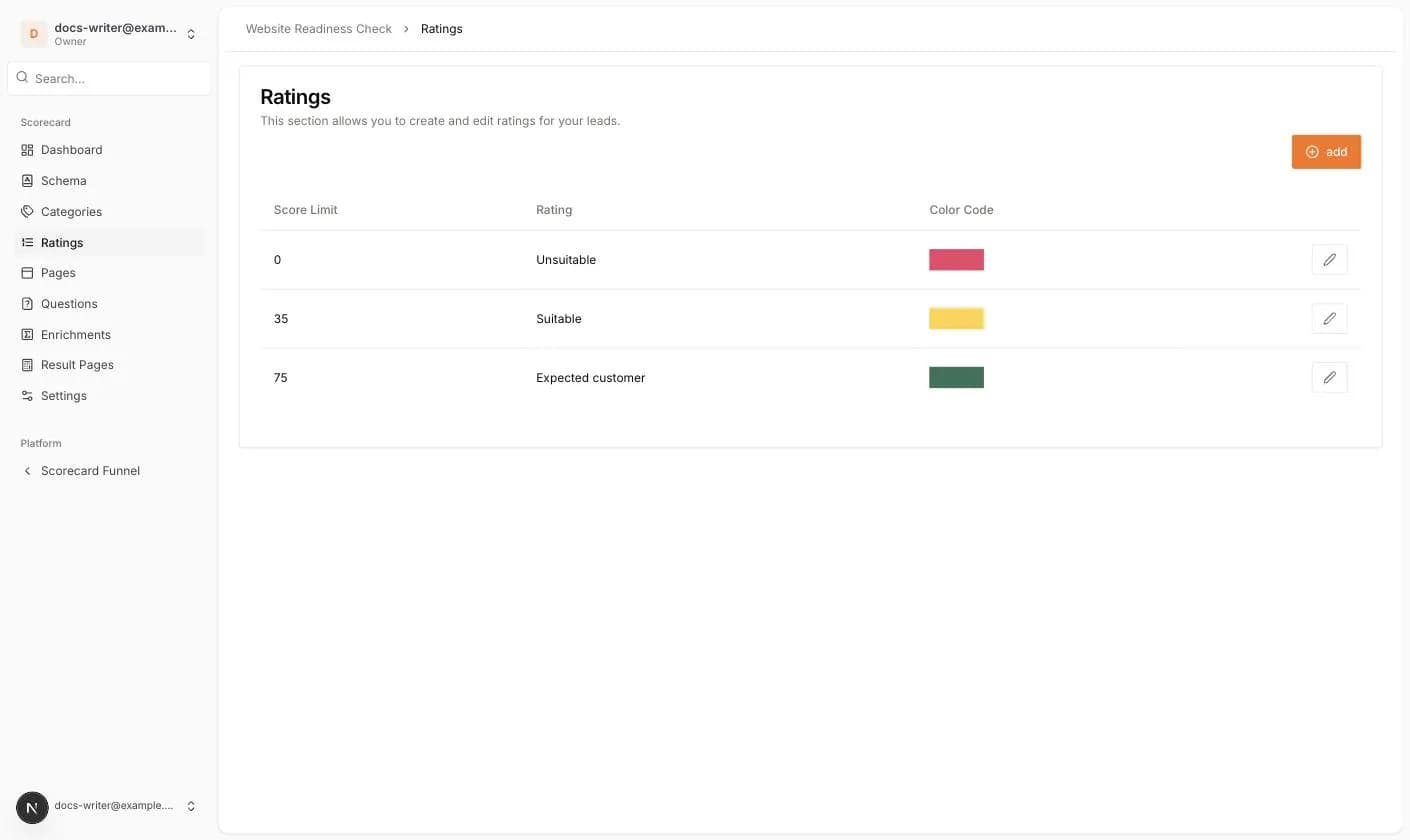
Tiers are called Ratings in the menu. A tier is a score band with a name and a color. Every new scorecard starts with three tiers: Unsuitable from 0 points, Suitable from 35 points and Expected customer from 75 points.
Pivix picks the tier with the highest Score Limit that is still equal to or below the total score. If the total score is 15 and the limits are 0, 35 and 75, the lead lands in Unsuitable. The tier name and color show up on the result page, on the lead page and in automations.
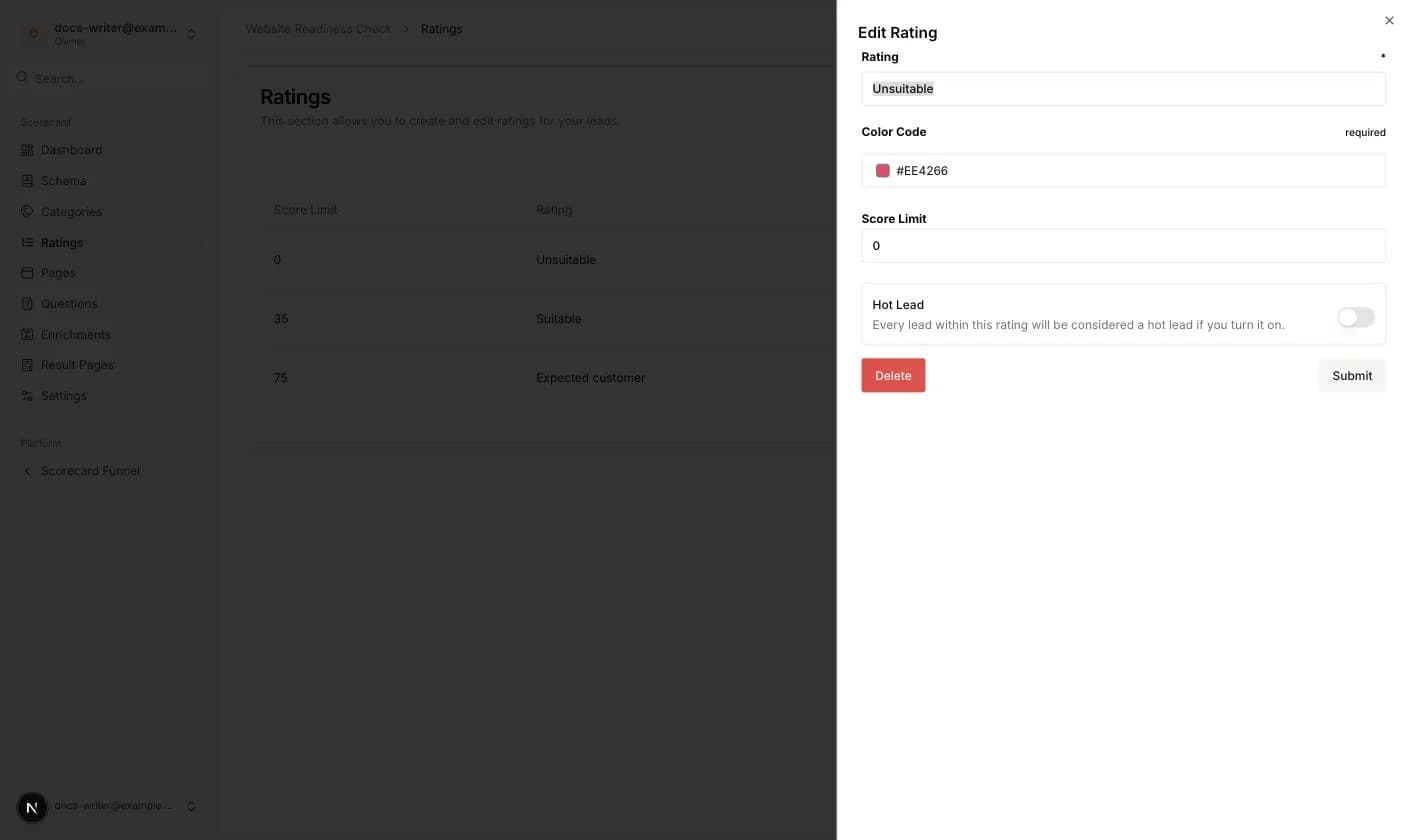
- Rating: the name of the tier. Required.
- Color Code: the tier color. Required.
- Score Limit: the minimum total score for this tier. Must be a whole number of 0 or more.
- Hot Lead: when switched on, every lead in this tier is marked as a hot lead. Hot leads are counted on the dashboard.