What is a scorecard?
A scorecard is an interactive quiz. Visitors answer a few questions. Each answer has a score. Pivix adds the scores up, picks a result tier such as "Suitable" and shows a result page. Before the result appears, the visitor fills in a short contact form. That contact becomes a lead in your account.
You use a scorecard to qualify leads. The score tells you how good a fit someone is before you ever talk to them. The tier tells your team who to call first.
- Questions give points. Categories group questions by topic.
- Tiers turn the total score into a label like "Unsuitable", "Suitable" or "Expected customer".
- The result page shows the score. The lead form collects name, email and phone.
- Every finished quiz creates or updates a lead.
Three ways to create a scorecard
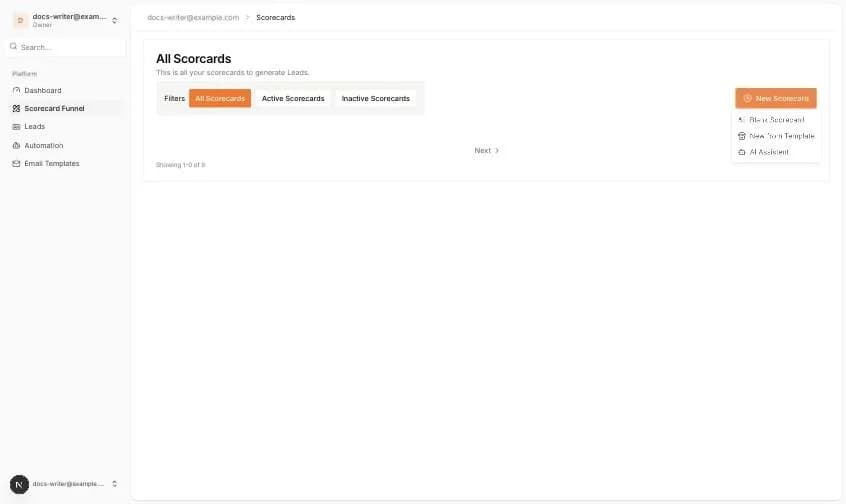
Open Scorecard Funnel in the left menu and click New Scorecard. A small menu opens with three choices.
Blank Scorecard
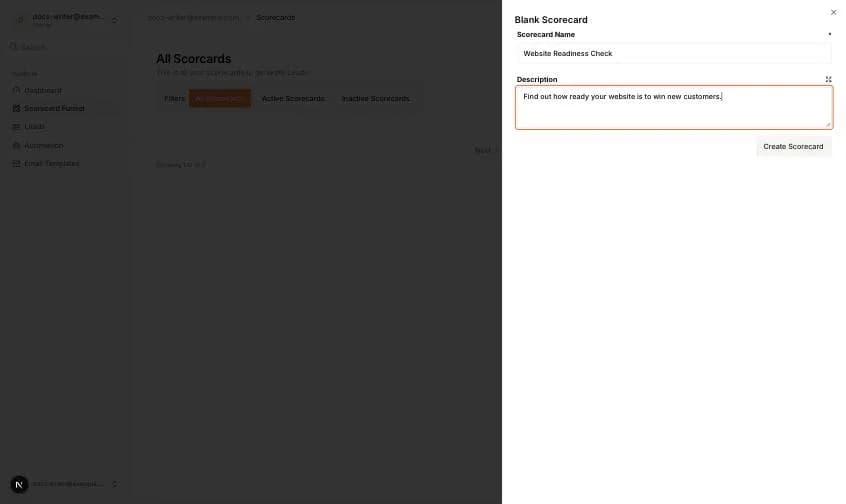
This is the fastest way to start. A side panel asks for two things.
- 1Type a Scorecard Name. This field is required.
- 2Add a short Description if you like. It is optional.
- 3Click Create Scorecard. Pivix opens the scorecard dashboard with a setup checklist.
New from Template
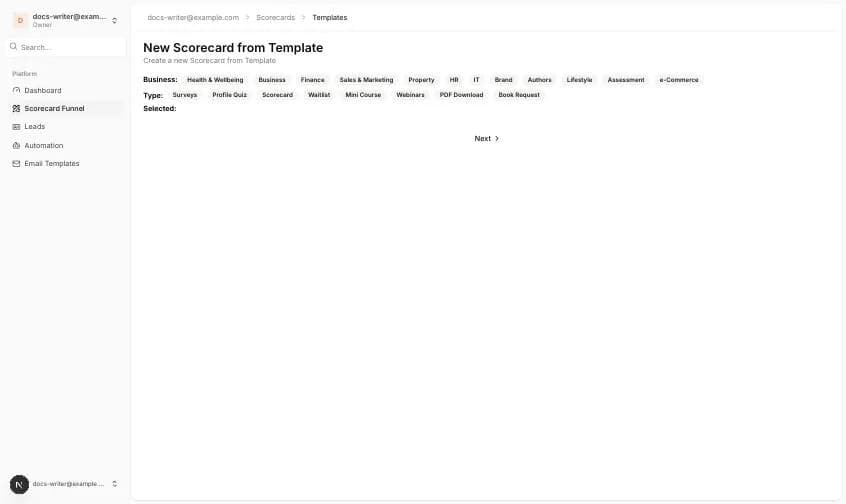
Templates are ready-made scorecards provided by Pivix. The template page lets you filter by Business (for example Health & Wellbeing, Finance, Sales & Marketing, HR, IT, e-Commerce) and by Type (for example Surveys, Profile Quiz, Scorecard, Waitlist, Mini Course, Webinars, PDF Download, Book Request).
Each template card has a Preview button and a Use This Template button. Use This Template opens a dialog where you enter a Name and a Description, then click Create from Template. Pivix copies the whole template, including its questions and pages, into a new scorecard.
If no templates match your filters, the list stays empty.
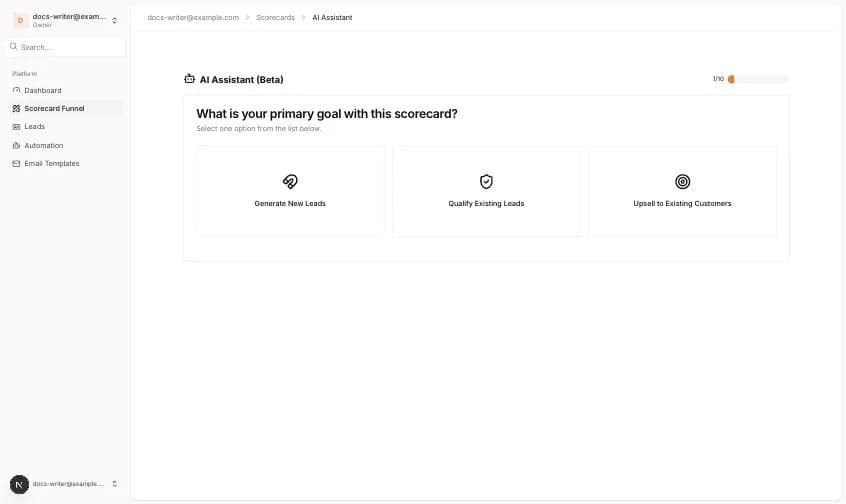
AI Assistant (Beta)
The AI Assistant builds a scorecard for you in ten short steps. Step one asks for your main goal: Generate New Leads, Qualify Existing Leads or Upsell to Existing Customers. The next steps ask you to describe your business, your audience and their goals, pick categories and questions, choose a result format, and select a template and a color theme. At the end you review the draft and Pivix creates the scorecard.
The setup checklist
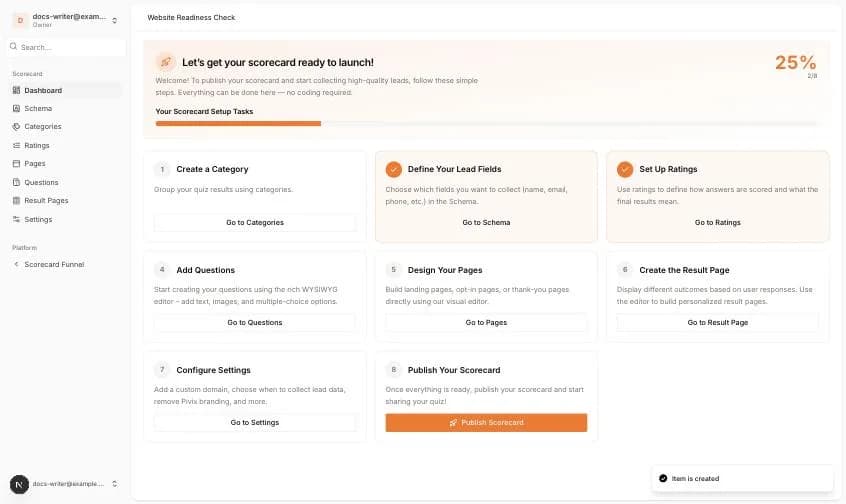
A new scorecard opens on its Dashboard. Until the scorecard is published, the dashboard shows a checklist with eight tasks and a progress bar. Two tasks are already done because Pivix creates default lead fields and default ratings for you.
Each task has a Go to button that jumps to the right page. The tasks are: Create a Category, Define Your Lead Fields (Schema), Set Up Ratings, Add Questions, Design Your Pages, Create the Result Page, Configure Settings and Publish Your Scorecard.