Settings
The Settings page has three tabs. Click Save Changes at the bottom after editing.
General
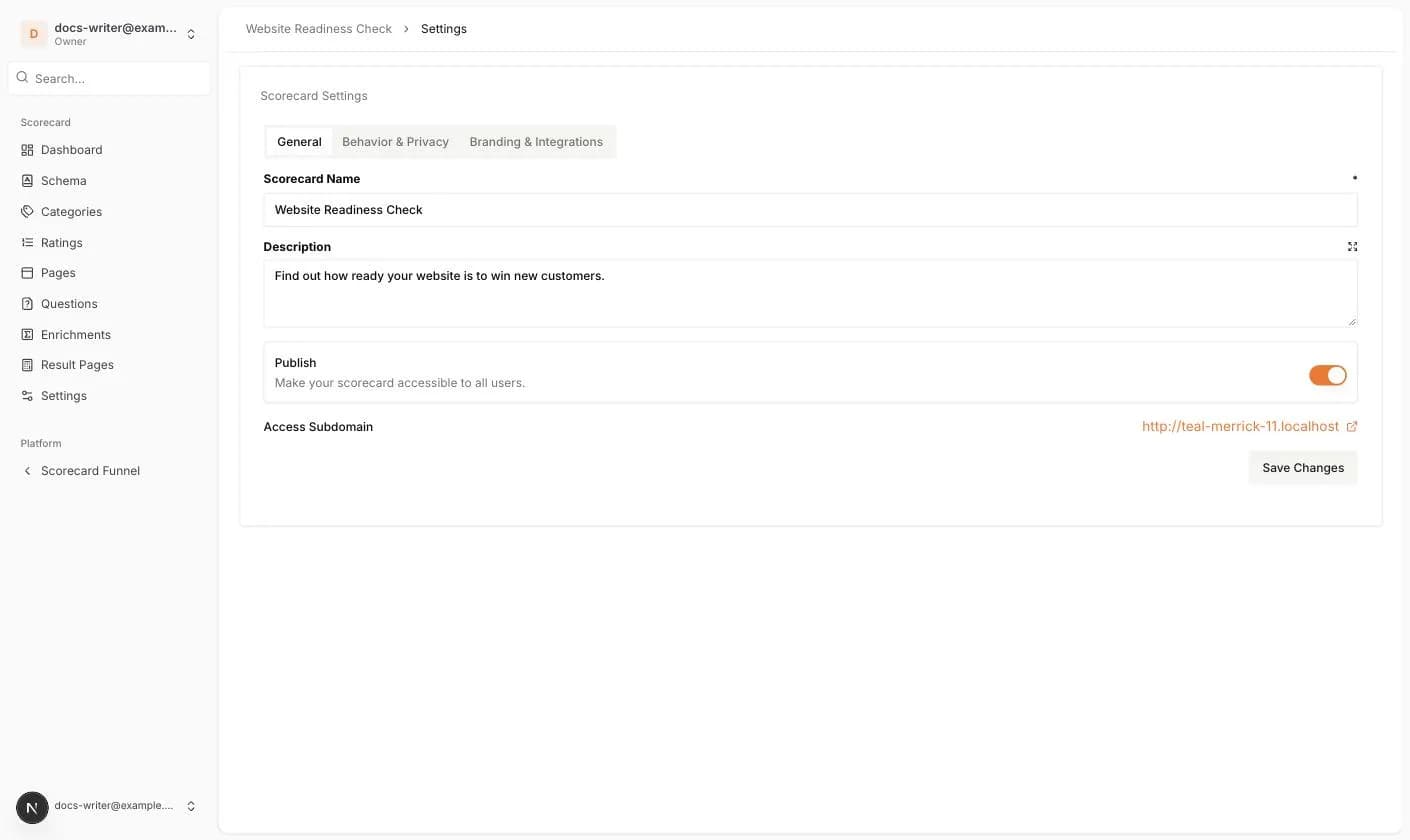
- Scorecard Name (required) and Description.
- Publish: makes the scorecard reachable by everyone. Your plan limits how many scorecards can be published at once. You can see the limit under Billing & Subscription as Active Scorecards.
- Preview Username and Preview Password: shown while the scorecard is unpublished. Visitors must enter them to see the quiz, so you can test before going live.
- Access Subdomain: the link of your scorecard. On the Business plan the field becomes Custom Domain.
Behavior & Privacy
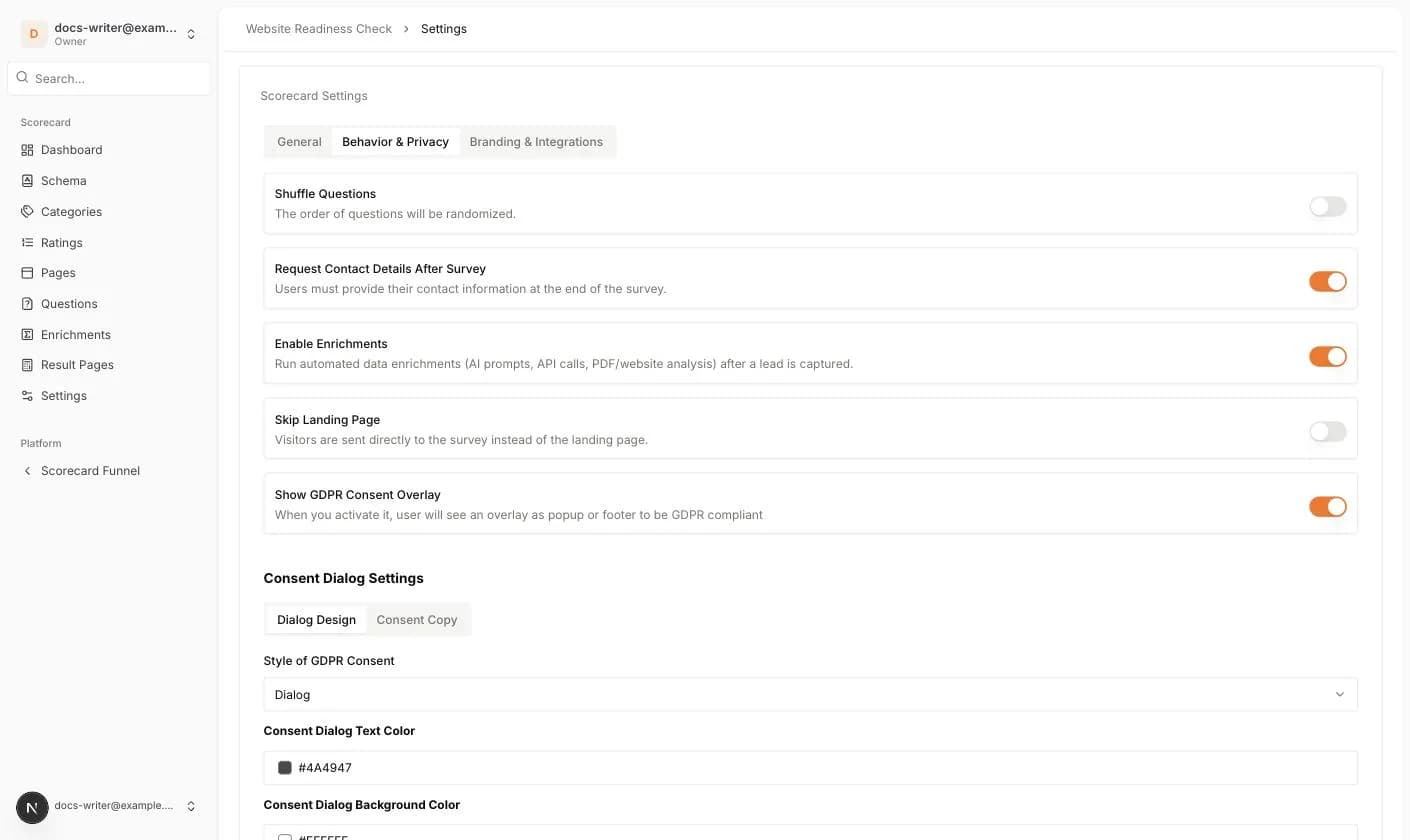
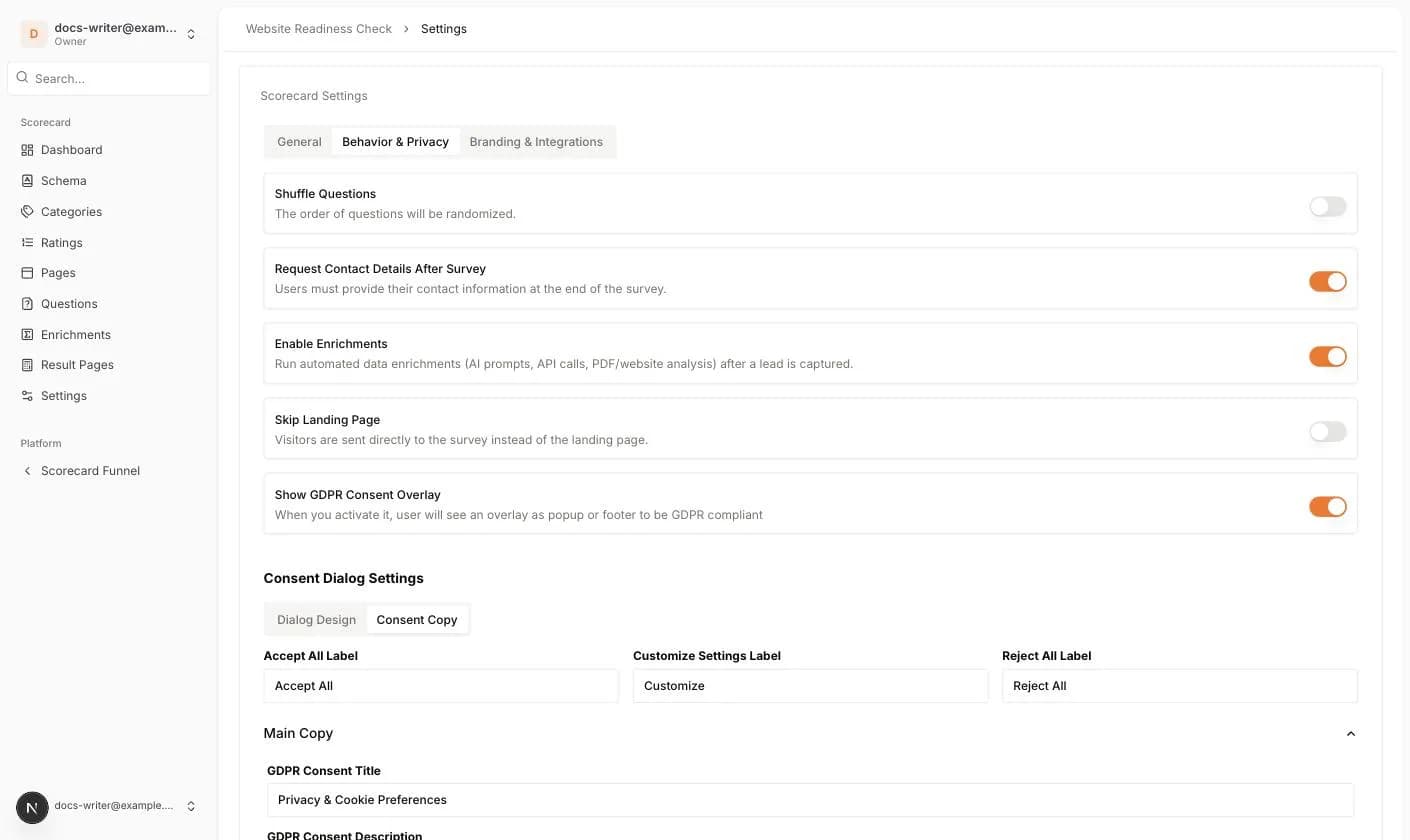
When the consent overlay is on, the Consent Dialog Settings appear. Dialog Design sets the Style of GDPR Consent (Dialog or Static Footer) and the colors of the dialog, the primary button and the secondary button. Consent Copy sets the Accept All, Customize Settings and Reject All labels, the Main Copy (title, description, dialog trigger label, privacy options title) and the texts for the Essential, Analytics, Marketing, Third Party and Embedded consent groups.
- Shuffle Questions: shows the questions in random order. When it is on, Limit the Number of Questions appears with a Question Limit field.
- Request Contact Details After Survey: asks for the contact form at the end of the quiz, right before the result.
- Enable Enrichments: switches on the Enrichments page for this scorecard (see the Enrichments article).
- Skip Landing Page: sends visitors straight to the first question.
- Show GDPR Consent Overlay: shows a cookie consent dialog. It is on by default.
Branding & Integrations
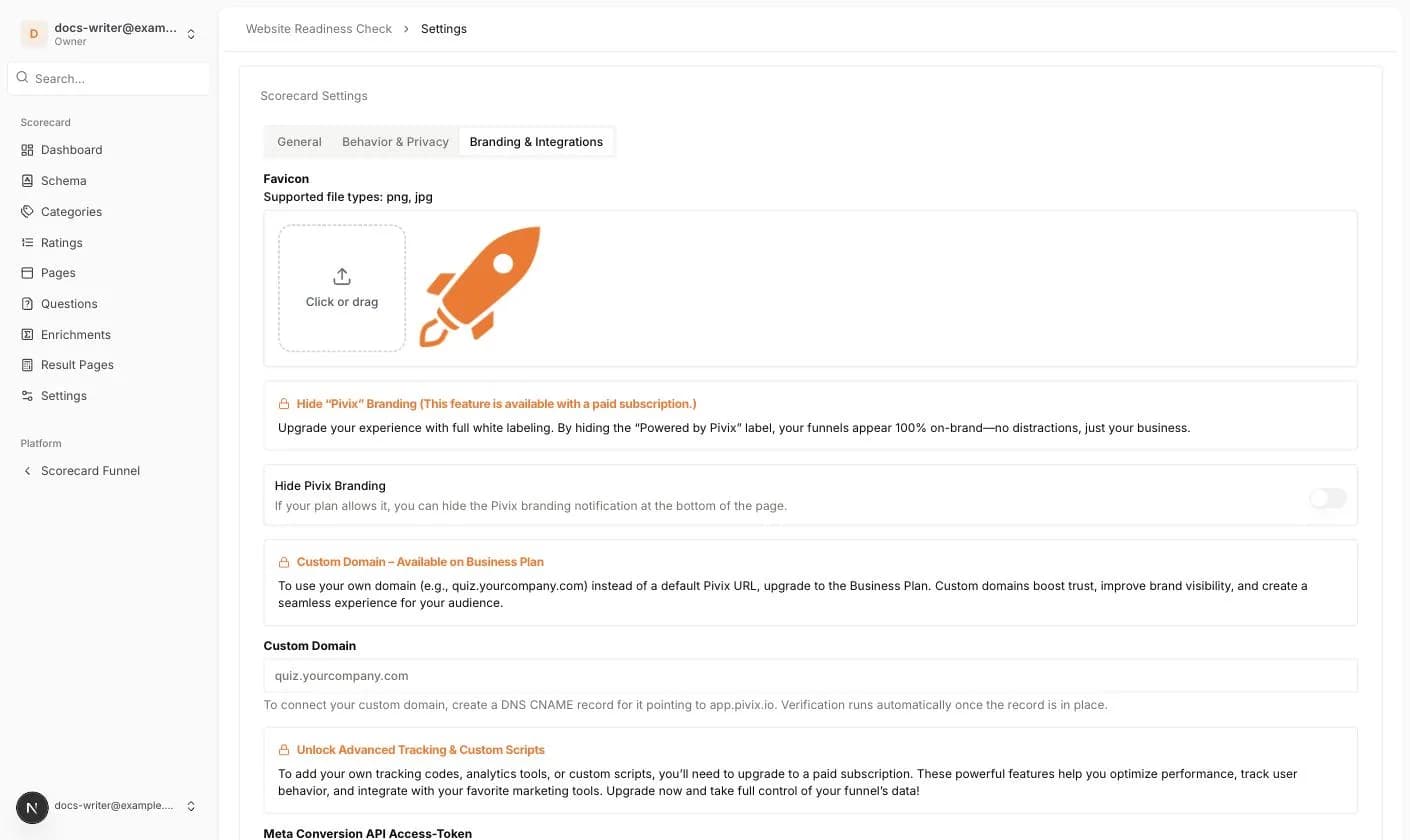
- Favicon: upload a png or jpg icon for the browser tab.
- Hide Pivix Branding: removes the Pivix label at the bottom of your pages. Needs a paid plan.
- Custom Domain: use your own domain such as quiz.yourcompany.com. Needs the Business plan and a DNS CNAME record pointing to app.pivix.io.
- Meta Conversion API Access-Token, Google Tag Manager and OpenAd Pixel ID: tracking integrations. They need a paid plan.