Result Page
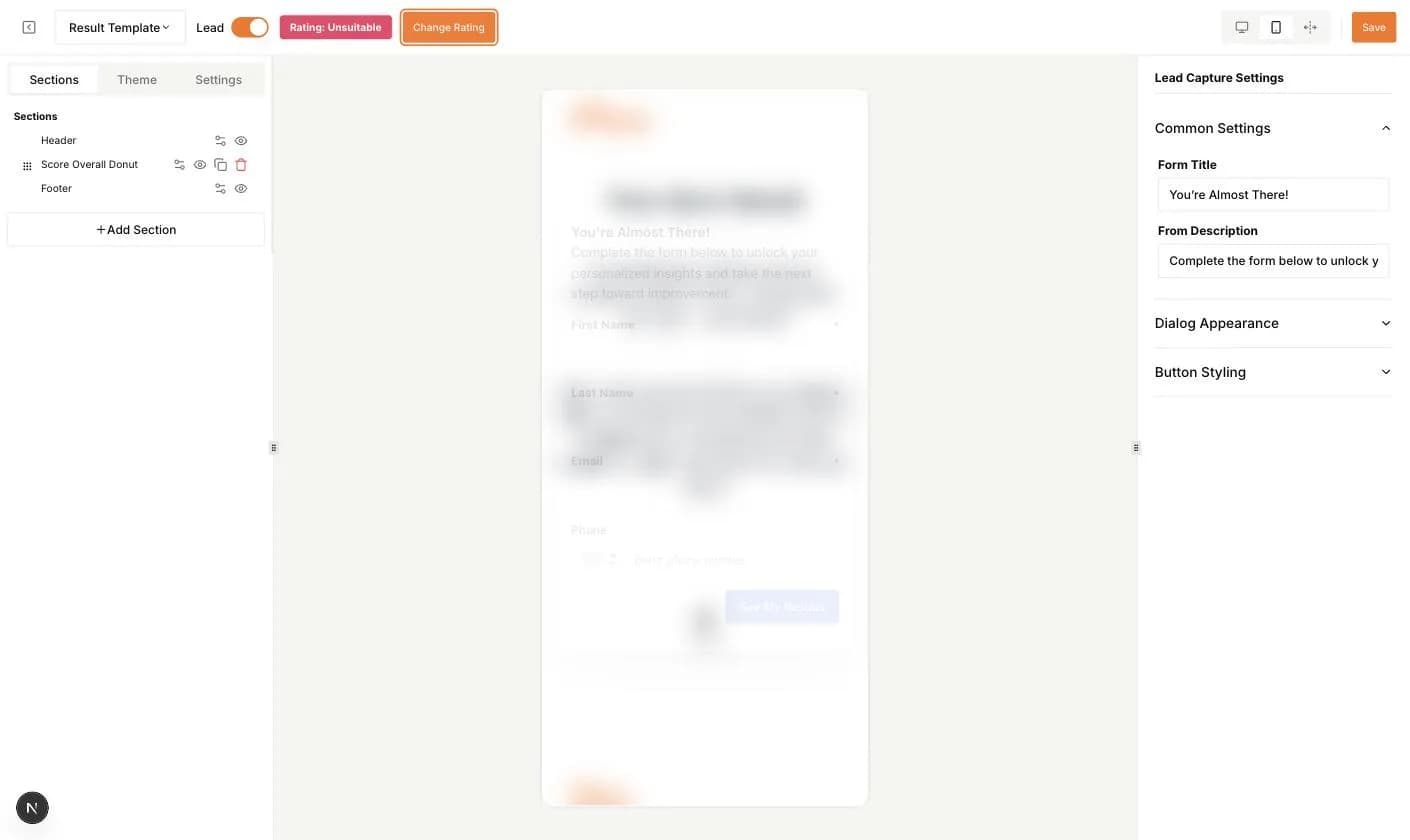
The result page is shown after the last question. It uses the same editor as the landing page, with a few extras in the top bar: a Lead switch that previews the lead form, a badge with the current preview rating and a Change Rating button.
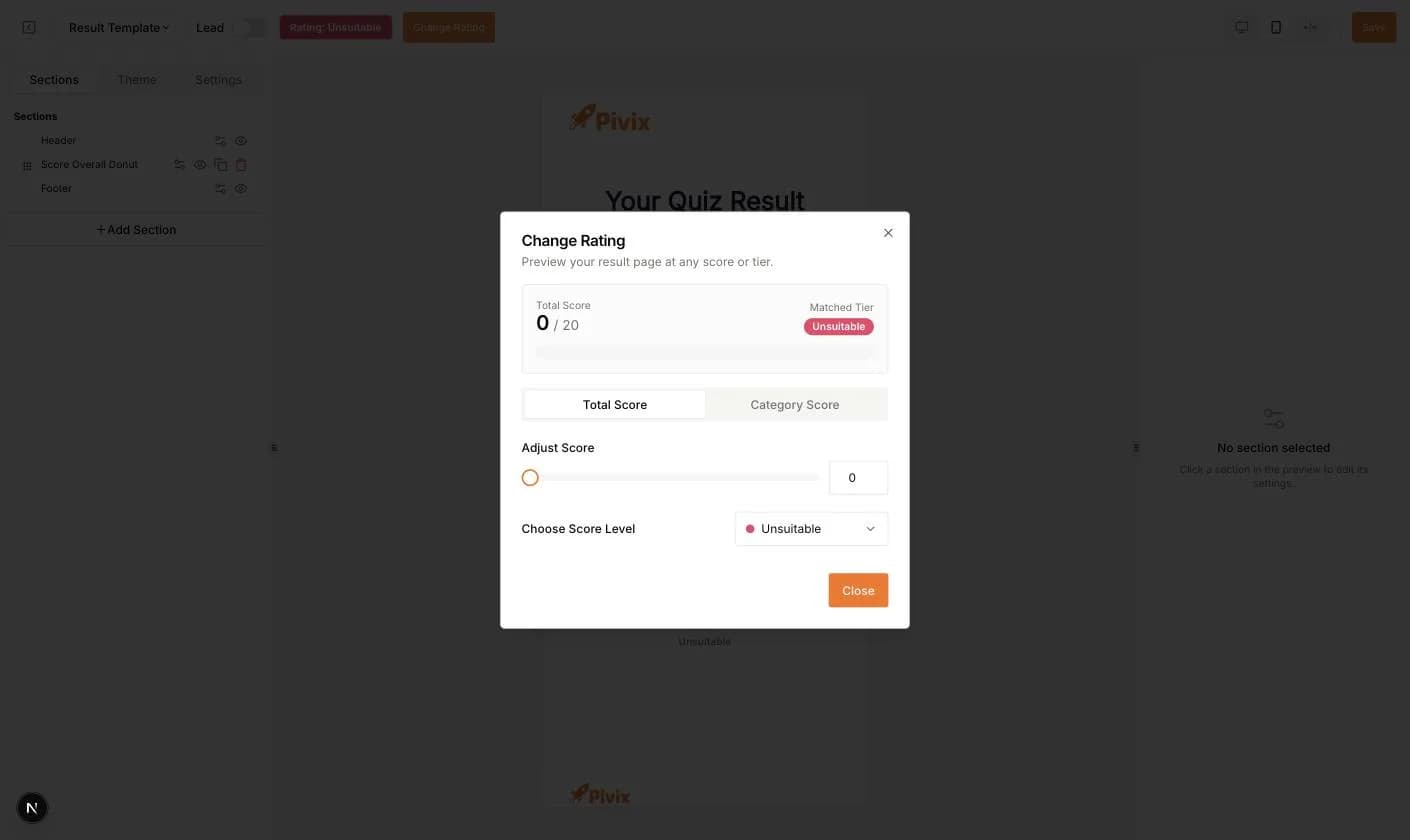
Change Rating opens a dialog where you drag the Total Score, pick a Score Level or set category scores. The preview updates so you can check how each tier looks.
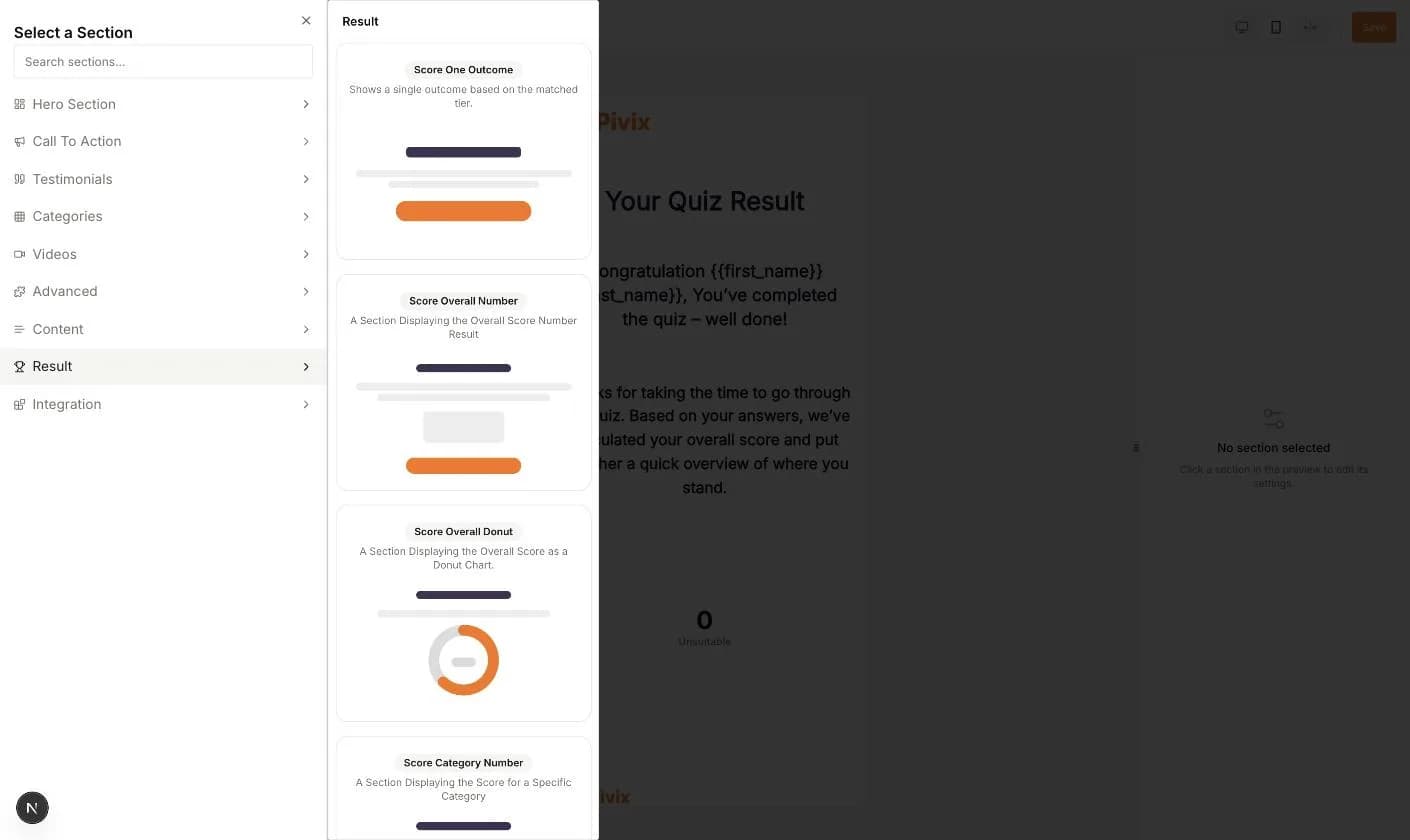
- 1Open Result Pages and click Add Section.
- 2Choose the Result group. It contains score sections such as Score One Outcome, Score Overall Number, Score Overall Donut, Score Category Number, Score Category Donut, Score Gauge, Score Comparison Bars, Next Steps Checklist, Personalized Recommendations, Category Radar Chart, Score Share Card, Result Download CTA, Referral Block, Booking CTA, Category Verdicts, Findings per Answer, Interactive Calculator, You vs. Benchmark and Score Tier Scale. The other groups from the landing page and an Integration group are available too.
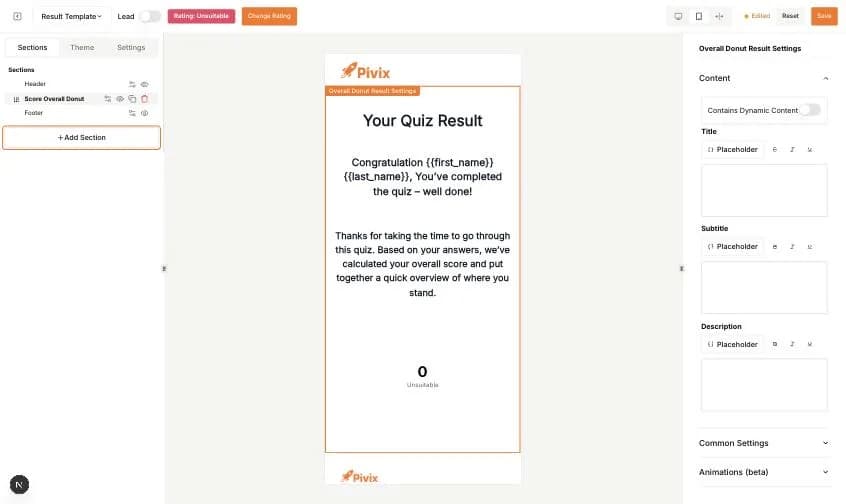
- 3Click the section in the preview. Edit the Title, Subtitle and Description. The Placeholder button inserts values such as the first name or the score.
- 4Switch on Contains Dynamic Content if you want a different text per tier.
- 5Click Save.
Show a section only for some tiers
Every section has Common Settings. On the result page they include Display on Tier Match. Switch it on and tick the Matching Tiers. The section is then only shown to leads in those tiers. This lets you build a completely different result page per tier.
The lead capture form
Switch on Lead in the top bar to preview the contact form. The Lead Capture Settings panel lets you change the Form Title, the Form Description, the Dialog Appearance and the Button Styling. The fields themselves come from the Schema page.