
Landing Page (Pages)
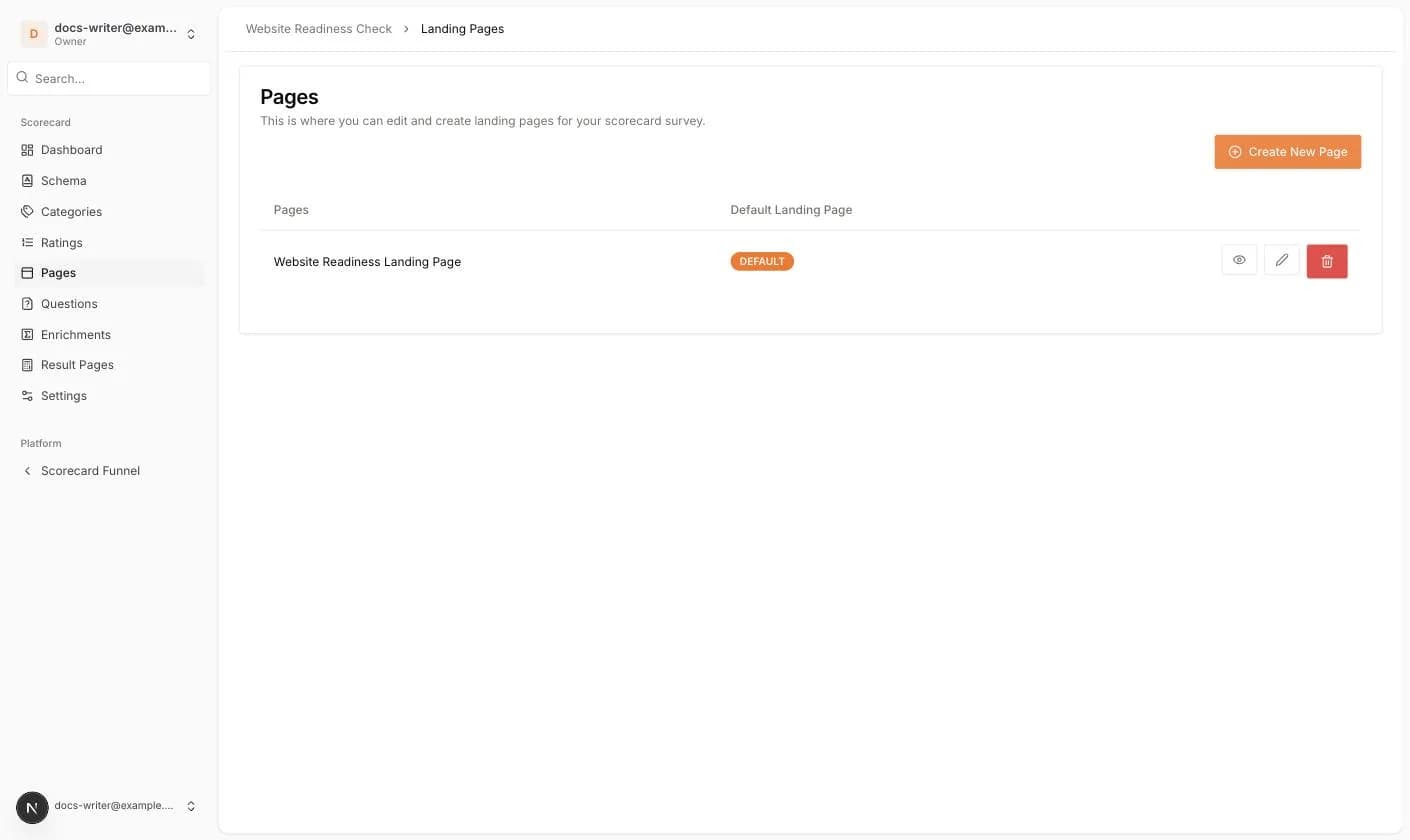
The Pages menu holds the landing pages of your scorecard. A landing page is the first thing a visitor sees when they open your scorecard link. It usually explains the quiz and has a button that starts it.
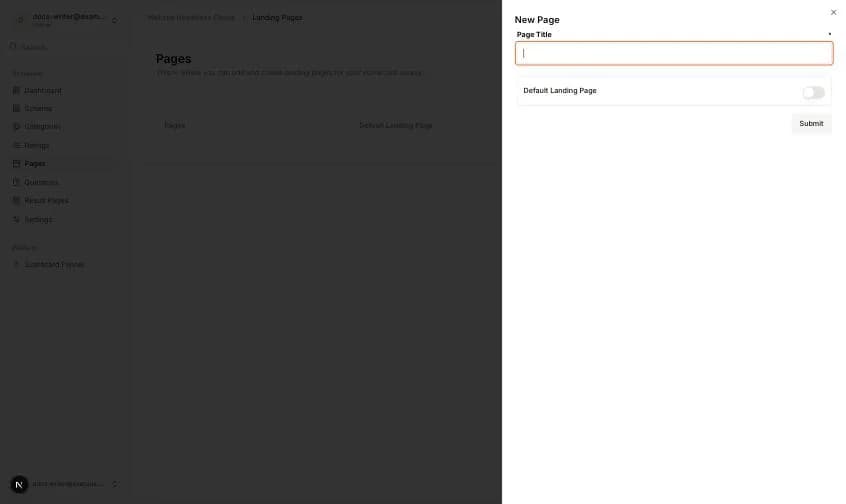
Click Create New Page and choose New Blank Page or New From Template. A blank page asks for a Page Title and has a Default Landing Page switch. The default page is the one shown at the root of your scorecard link.
- 1Enter a Page Title and switch on Default Landing Page if this is your main page.
- 2Click Submit. The page editor opens with a Header and a Footer section.
- 3Click Add Section. Choose a group: Hero Section, Call To Action, Testimonials, Categories, Videos, Advanced or Content. You can also search sections by name.
- 4Pick a section card. It appears in the preview. Click it to edit its texts, images and colors in the right panel.
- 5Click Save.
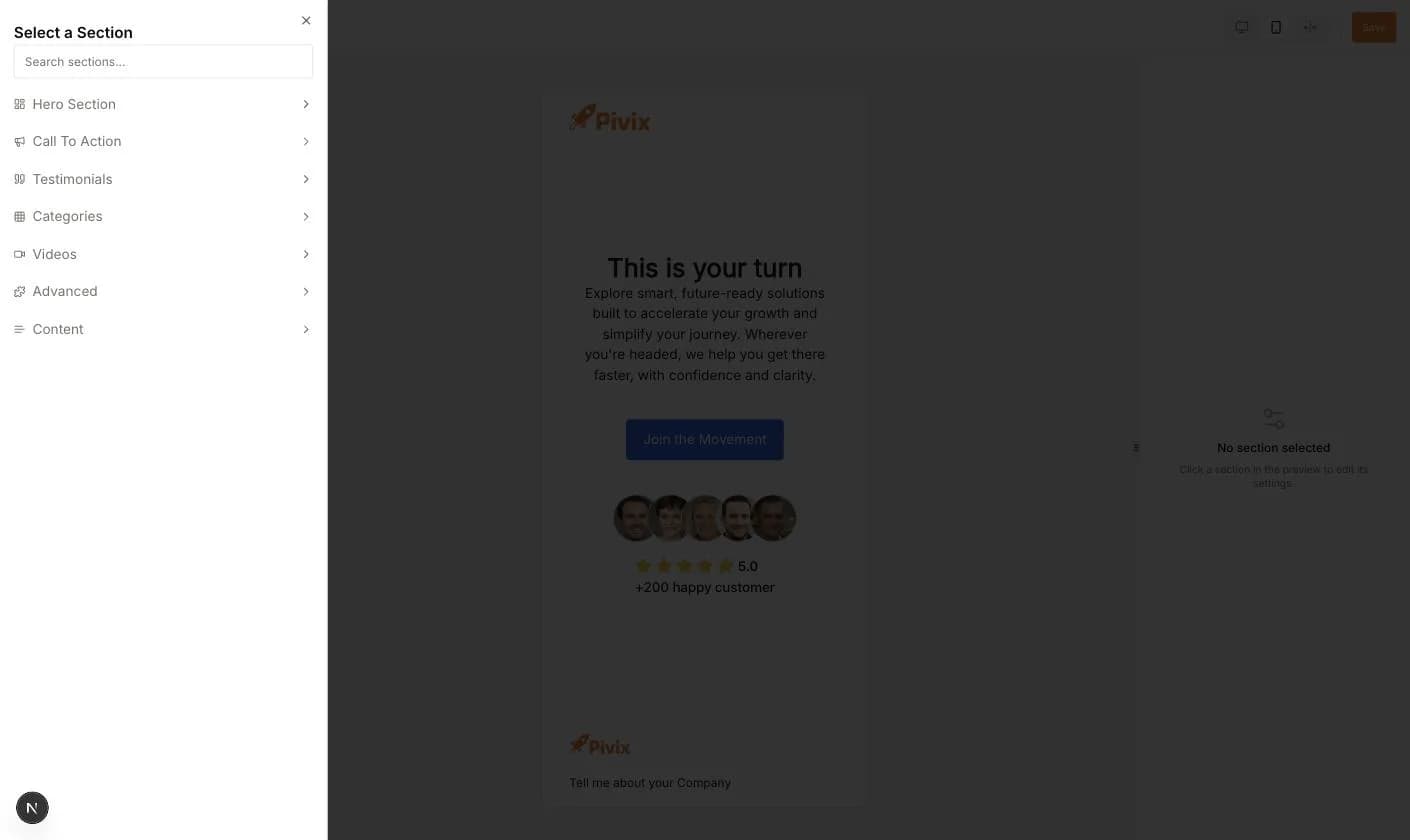
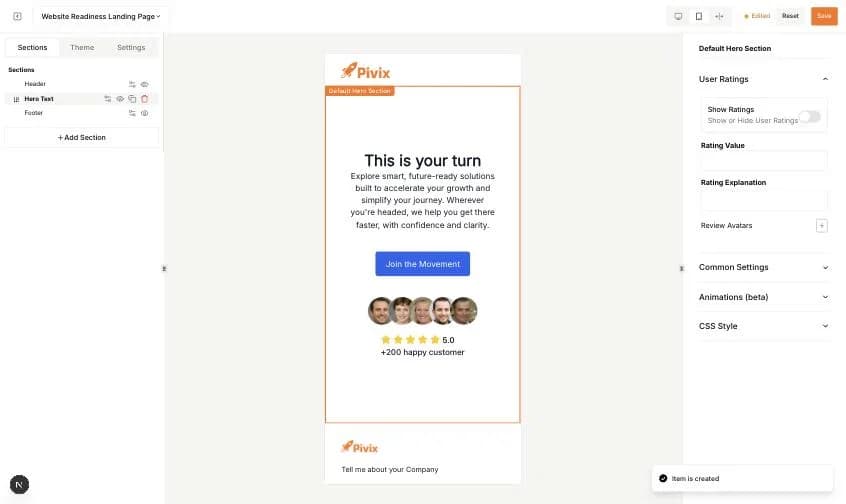
The Hero Section group has three cards: Hero Text, Hero Image and Hero with Form. Hero with Form starts the survey directly on the landing page. If you do not want a landing page at all, switch on Skip Landing Page in Settings.